Table of Contents
Setting up paycheck items

Introduction
Payroll System can be set up to calculate a wide variety of taxes, deductions, and incomes. When a state is selected for a Client, Payroll System will add Paycheck Items appropriate for that state. The user can then add, edit, or delete these items. The Paycheck Items are used to calculate tax, deductions, and income on employee paychecks and returns.
Definitions
Tax Item: a Paycheck Item such as federal income tax, unemployment, or Medicare
Deduction Item: a Paycheck Item such as 401(k) or Dependent Care
Income Item: a Paycheck Item such as hourly wage, salary, or tips
Finding the Payroll Setup tab
The Payroll Setup tab stores the tax items for an employer or payer. The tab has three sections, one for each type of Paycheck Item.
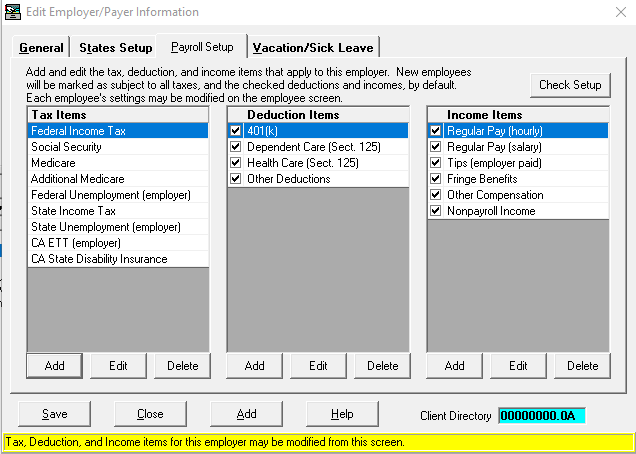
To access the Payroll Setup tab:
- Double-click on a client in the Client List. If the client does not yet exist, see Adding employers and payers to the Client List.
- On the Edit Employer/Payer Information screen, click the Payroll Setup tab.
Customizing Paycheck Items
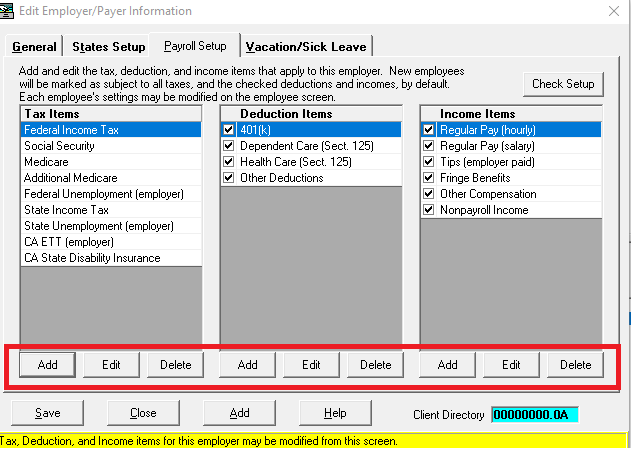
Paycheck Items appropriate for the employer's state will automatically be added. The user can customize certain Paycheck Items. This is accomplished using the Add, Edit and Delete buttons near the bottom of the screen.
A screen similar this this appears when the Add or Edit button is clicked.
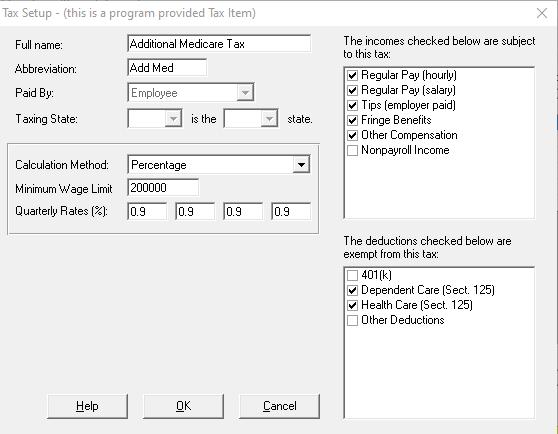
Make the appropriate selections and click the OK button when finished.

These defaults can be overridden for individual employees.
Customizing paycheck appearance
To customize paycheck appearance:
- Open the Payroll Setup tab.
- Click Check Setup.